Description
- Environment : Steam / Debian Sid / Xfce
- Game : Elite Dangerous ; DLC : Odyssey
- Compatibility : no specific Steam Play compatibility tool
o7, CMDR: The game is functional without particular worries…
Configuration
-
Installation folder of the game :
steam/steamapps/common/Elite Dangerous/; this one is easily found in Steam, click D on the game, then “Properties”; menu “Installed files”; then click on the [ Browse… ] button that will open the directory in question. -
Path to the Binary
EliteDangerous64.exe:steam/steamapps/common/Elite Dangerous/Products/elite-dangerous-odyssey-64/ -
Path of the “windows” data of the game:
steam/steamapps/compatdata/359320/pfx/drive_c/users/steamuser/AppData/Local/Frontier Developments/Elite Dangerous/ -
Game backup folder:
steam/steamapps/compatdata/359320/pfx/drive_c/users/steamuser/Saved Games/Frontier Developments/Elite Dangerous/
Keybinding
Setting up keyboard key management is not a part of the fun.
You must create a directory called “Bindings” in the subdirectory “Options” of the “windows” data folder of the game, such as:
steam/steamapps/compatdata/359320/pfx/drive_c/users/steamuser/AppData/Local/Frontier Developments/Elite Dangerous/Options/Bindings/.
⇒ Profiles are available mainly on EDRefCard.
Here is my version : Custom.4.2.binds ; remove the extension .txt ;)
- Relaunch the game and change the profile in the Game Options > Controls; then choose to change the presets.
Steam desktop shortcut
It’s possible that Steam created a game desktop launcher; but in fact, it won’t work.
-
Right-click on the launcher to “Edit Launcher” and then in the “Order” field, fill in the absolute path to the Steam executable, such as (under Debian):
/usr/games/steam steam://… -
To find out where the absolute path to the Steam binary is, in a console, run the following command:
:$ command -v steam
This modification being made, the desktop launcher will indeed launch the game.
Desktop Authorizations
You must allow the file to be executed as a .desktop file.
If at the first launch, you refused, it does not matter; right click on the launcher:
-
choose “Properties…”,
-
click on the “Launcher” tab and in the “Security” section, click on the checkboxes in front:
- Allow this file to be run as a .desktop file
- Set this file as approved
Tools
All of the tools below run on Linux, with some configurations.
It is not, however, that it is necessary to install them all; in any case, ensure that only a single tool that collects them datas, (Inara, EDSM, etc.), such as EDMarketConnector or EDDiscovery for example.
For some, the use of the tool protontricks will be necessary; fortunately in many distributions, including Debian, it is provided as a package; install it!
EDHM-UI
EDHM-UI v3 is a tool to modify the graphical interface.
- Official website: https://bluemystical.github.io/edhm-api/
- Git: https://github.com/BlueMystical/EDHM_UI
- Used version:
3.0.67, 3.0.70
Once installed :
- Configuration files :
$HOME/.local/share/EDHM-UI-V3/
In the repository, you have to go to the Release page and download:
- the archive edhm-ui-v3-linux-x64.zip
- the shell script linux_installer.sh
Once the archive is downloaded, unzip it and copy into the install script. Give the script execution rights and run it.
The tool is accessible from the system menu; with Xfce, in the “Accessories” menu.
By default, the tool seeks to communicate with the game for the correct setting; it is necessary to restore the absolute path of the directory “elite-dangerous-odyssey-64”; if you missed something in the step, choose the menu “Main menu” > “Settings”.
EDMarketConnector
EDMarketConnector is a python tool to “improve” trade in Elite Dangerous, mainly, although it is able to use secondary features through plugins.
Two versions exist: one via flatpak, and the other through the sources into the Git repository.
-
Used version: 6.1.2
-
Configuration files:
- via flatpak:
$HOME/.var/app/io.edcd.EDMarketConnector/ - via git:
$HOME/.local/share/EDMarketConnector/
- via flatpak:
-
The main configuration file:
config.toml.
⇒ Installation from the sources is done quite easily:
:$ git clone https://github.com/EDCD/EDMarketConnector.git

:$ cd EDMarketConnector
EDMarketConnector :$ python3 -m venv venv
EDMarketConnector :$ source venv/bin/activate
EDMarketConnector :$ pip3 install -r requirements.txt
EDMarketConnector :$ python3 EDMarketConnector.py
Since the tool must be launched in a python environment, I created a shell launcher:
#!/bin/bash

dir="~/Games/EDMarketConnector/"

cd "${dir}"

source venv/bin/activate

python3 EDMarketConnector.py
Then a desktop launcher that points to the shell script, while setting the icon with the icon of the tool at the root. (Choose “Files images”).
If the icon is not in the archive, you will find it in the repository.
- The functional plugins—which I use… :
⇒ cargo-manifest: it seems necessary to change the name of the main directory; from cargo-manifest to cargo_manifest.
With this slight modification, the plugin is functional!
⇒ docking-denied-raison
⇒ EDMC-Bioscan requires ExploData which requires sqlalchemy.
- If you are using the flatpak version of EDMC, download the named version
ExploData-***-db-***-flatpak.zip; Because it embarks sqlalchemy. - If you are using the sources, you will need to install
python3-slqalchemyin the dedicated python3 environment!
⇒ EDMCHotKeys
⇒ EDMCModerOverlay
⇒ EDMC-NavRoute
⇒ EDMC-NeutronDancer
⇒ EDMC-Pioneer
⇒ EDMC-Screenshot-Linux
⇒ UpdateTD
Other plugins exist; they should work…
EDDiscovery
EDDiscovery is a complete dashboard to manage all the aspects that the game offers.
-
Used version: 19.1.9.0
-
Steam:
- forced compatibility option: Proton 9.0-4
- launch option: none
From the ‘Release’ page of the repository, download the Portable zip archive; unzip it wherever you want.
In Steam:
- click on the “Games” menu > “Add a game name Steam to my library…”, choose the binary
EDDiscovery.exewhich is in the decompressed archive. - right-click for the “game” properties, and force compatibility – currently, I’m using the “Proton 9.0-4” version.
- right click again for the “Manage” menu > “Create a shortcut on desktop”.
All the remarks made in the Steam desktop shortcut chapter are to be made!
Once EDD is opened, go to the “Settings” tab:
- In the “Settings” section, click the [ Add ] button, a new window will open called “CommanderForm”.
- In the “Journal Related Information” section:
- Write the name of your Commander, in the “Commander Name” field
- click on the [ Browse ] button to select the game backup directory.
- make any other desired configuration
- click on the [ OK ] button to validate the configuration.
- delete the profile named “Jameson (Default)”.
- In the “Journal Related Information” section:
Return to the “History” tab, you will find the feedback related to the commander used in the game.
To be able to set the icons, and the desktop launcher, and in the Steam app, you need to unzip the archive eddwebsite.zip, located at the root of the Portable archive. The image to be used mainly is in the subdirectory “Images” and is called “EdLogo600.png”.
Note: Some plugins, such as those to display Inara, EDSM sites do not work because it lacks a tool called WebView2.
Elite Dangerous Monitor Daemon
Elite Dangerous Monitor Daemon alias EDMD is another complete dashboard to monitor in real time the game session, made for Linux natively (GTK4 interface).
Once installed :
- Configuration file:
$HOME/.config/EDMD/config.toml
ED Odyssey Materials Helper
Elite Dangerous Odyssey Materials Helper is the tool that revolutionizes the acquisition of the necessary materials in the relations with engineers. It shows you what you have, what you miss, the relationship with such an engineer, and much more…
- website: https://edomh.nl/
- Git: https://github.com/jixxed/ed-odyssey-materials-helper/
- Discord: https://discord.gg/M8Rgz4AmmA
- Used version:
3.13.8, 3.13.12
From the ‘Release’ page, download at least the zip archive, but prefers the autoupdater .deb, .rpm package.
From the binary, everything is installed in the system where it is necessary and becomes accessible from the system menu; under Xfce, menu “Other” > “Elite Dangerous Odyssey Materials Helper”.
Once the application is open:
- Click on the “Settings” menu
- on “Folder Journal” line, click on the [ Select Directory ] button and choose the absolute path related to the game’s backup directory.
Then, do all the other configurations, such as the language, and then use the tool.
Min ED Launcher
Min ED Launcher is not a tool. It replaces the official launcher, while being very light, which is convenient under Linux, and has other practical aspects, including third-party tool execution, such as SRVSurvey.
-
Used version: 0.13.0
-
Steam:
- forced compatibility option : none
- launch option : yes; read the explanations below.
Once installed:
- Configuration file:
$HOME/.config/min-ed-launcher/settings.json - log:
$HOME/.local/state/min-ed-launcher/min-ed-launcher.log
From the ‘Release’ page, download the zip archive for Linux, and then unzip it.
- Copy the binary
MinEdLauncherinto the ED’s installation folder.
⇒ In Steam:
- Right-click to open the game properties
- in the launch options, write at least:
- for Gnome—run too into Xfce4!:
gnome-terminal -- ./MinEdLauncher %command% /autorun /autoquit- what works for me:
gnome-terminal --hide-menubar -t "Min ED Launcher" -- ./MinEdLauncher %command% /autorun /autoquit waitForExit
- what works for me:
- for Xfce4:
xfce4-terminal --disable-server -x ./MinEdLauncher %command% /autorun /autoquit waitForExit- what I’m using:
xfce4-terminal --disable-server --hide-menubar --hide-scrollbar --hide-toolbar -T "Min ED Launcher" -x ./MinEdLauncher %command% /autorun /autoquit waitForExit
- what I’m using:
- for Gnome—run too into Xfce4!:
(It is possible to use other terminals in the launch options; please read the information on the repository!).
⇒ The archive provided a desktop launcher and icon. It is possible to copy the desktop launcher to your desktop. Then right-click to change the command, such as:
/usr/games/steam steam://rungameid/359320 /edo
This will run the launch of the Odyssey version of the game directly.
⇒ All the remarks made in the Steam desktop shortcut chapter are to be made!
⇒ It is imperative that the launch options are written in the general properties of the game; cf above!
Note:
- It is important that the two layers IPv4 AND IPv6 networks are functional, otherwise it will not work.
OD Explorer
OD Explorer is truly THE companion to Elite Dangerous, to help us in exploration and exobiology research.
Note: This tool is designed to work well with the English language of the game Elite Dangerous, in the other languages of the game, it will not be able to bring everything up properly. But if you understand the English language well enough: “go!”
-
Used version:
2.0.14, 2.0.15 -
Steam:
- forced compatibility option: Proton 9.0-4
- launch options: none
The Logo is available from the repository in the subdirectory Resources/ and is named Astronaut.png.
From the ‘Release’ page of the repository, download the ODExplorer-Portable.zip version.
Unwind it, for example, in such a way that you have it: ~/Games/ODExplorer-Portable
Then you have to use the protontricks tool.
That being done, in Steam:
- Click on the “Games” menu > “Add a game name Steam to my library…”.
- right-click for the “game” properties, and force compatibility – currently, I’m using the “Proton 9.0-4” version.
Click the [ Play ] button…
At the first launch, a window will open asking for the installation of the “runtime v8.0” of Microsoft Windows. Close the windows by pressing the [ No ] button.
Next, open Protontricks and target “Non-Steam shortcut: ODExplorer.exe: …”. Choose to install a component, select dotnetdesktop8.
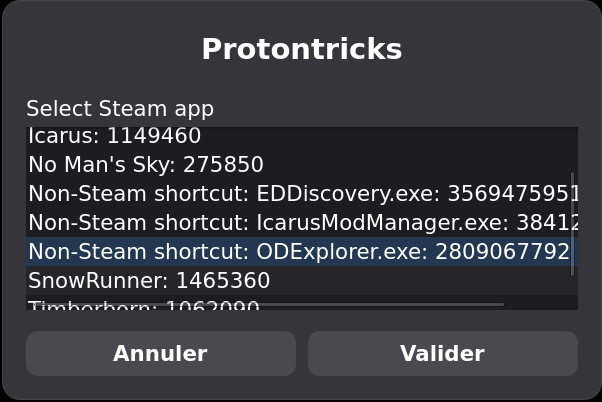
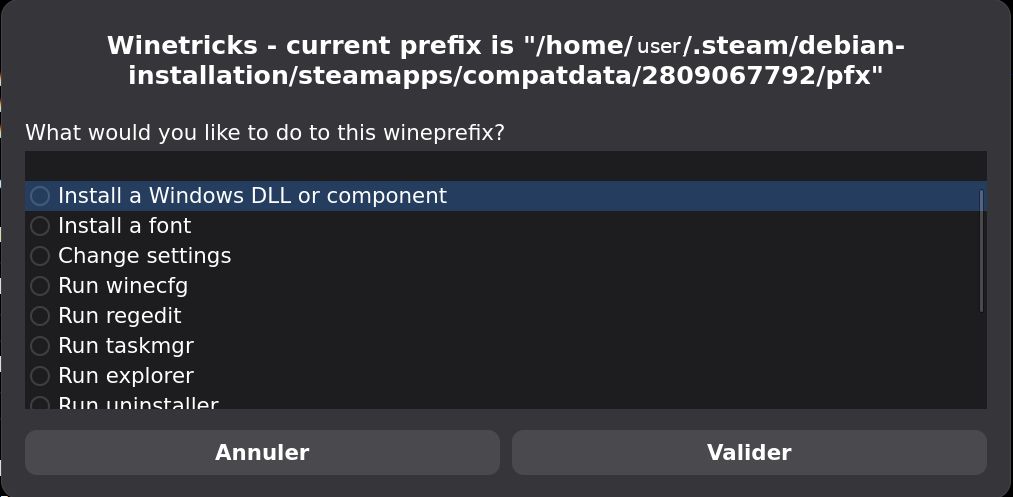
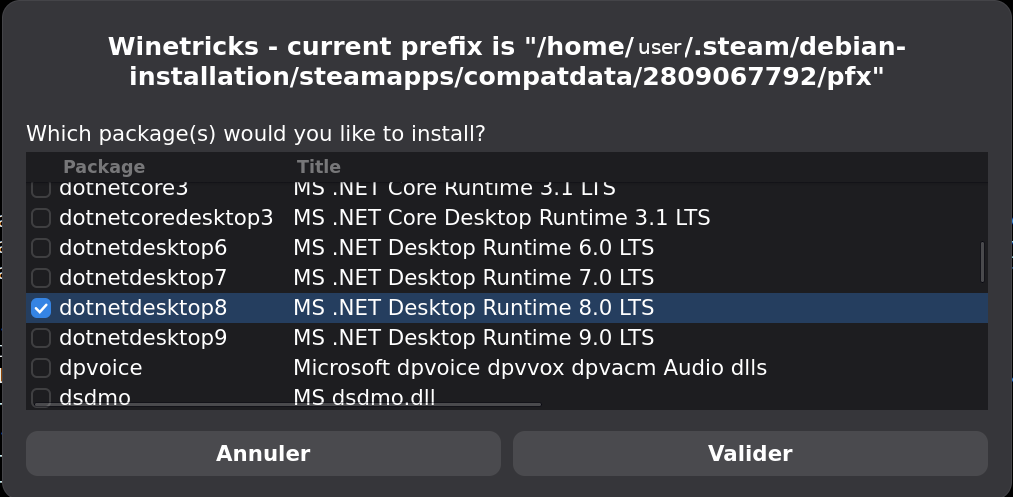
Once the installation is complete, before running the binary from Steam again, right-click again and choose the “Manage” > “Create a shortcut on desktop” menu.
The remarks made for the game’s Steam desktop shortcut are exactly the same for this shortcut; so make the same changes.
PS: Although we have mono installable under Linux, the use of mono ODExplorer.exe does not work.
SRV Survey
SRV Survey is a useful support companion by displaying data on the game screen, during a game session; it is useful for organic scans during exploration, to track the player’s position, and useful on the sites of the “Guardians”.
- Git: https://github.com/njthomson/SrvSurvey
- Used version: 2.0.95.23
Here is the procedure to operate this tool:
- Min ED Launcher is required
- then the installation of SRV Survey, and a complementary script
- Then the use of
protontricks.
⇒ 1. Download the zip archive from the “Releases” page, currently version 2.0.95.23.
- Uncompress the archive
- Go to the “Application Files” directory
- Copy the directory named SrvSurvey_number-version to the ED game installation directory
- Rename the directory in
SrvSurvey. - Download the shell script SRV_Survey.sh, provided by Maldor, the author of EDMD.
- Edit the
SRV_Survey.shshell script and copy to the “SrvSurvey” directory, previously copied, renamed to the installation directory of the game.
⇒ Concern Min ED Launcher: whatever your configuration, you must add a process declaration; change the key processes to a similar statement:
    "processes": [
        { "fileName": "/home/userid/.local/share/steam/steamapps/common/Elite Dangerous/SrvSurvey/SRV_Survey.sh" }
    ],
Change litteraly “/home/userid” by your!
⇒ SRV Survey requires the to be installed to work. This is where the use of the protontricks tool comes in:
-
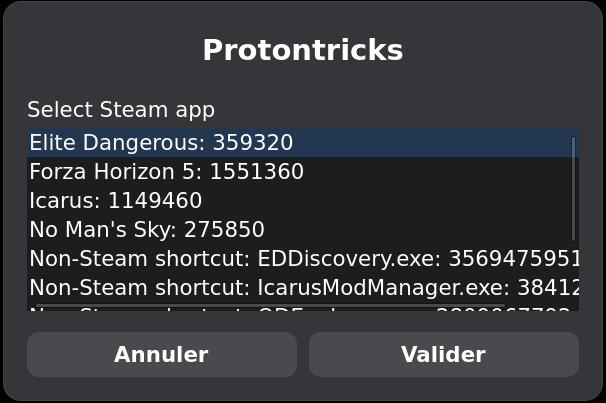
once protontricks is executed:
-
select the line corresponding to the game “Elite Dangerous : 359320”, then click on the [ Validate ] button.
-
different windows of error messages related to winetricks appear, click [ Validate ].
-
the “Winetricks - choose a wineprefix” window ends up appearing: select, if not the case, the choice “( ) Select the default wineprefix” and then click on the [ Validate ] button.
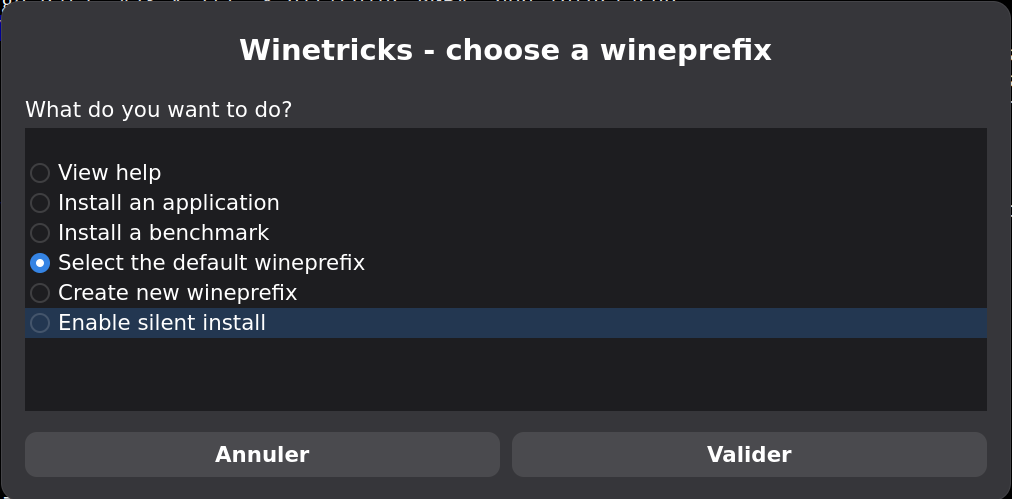
-
the “Winetricks - current prefix” window opens, choose “( ) Install a Windows DLL or component”, and then click the [ Validate ] button.
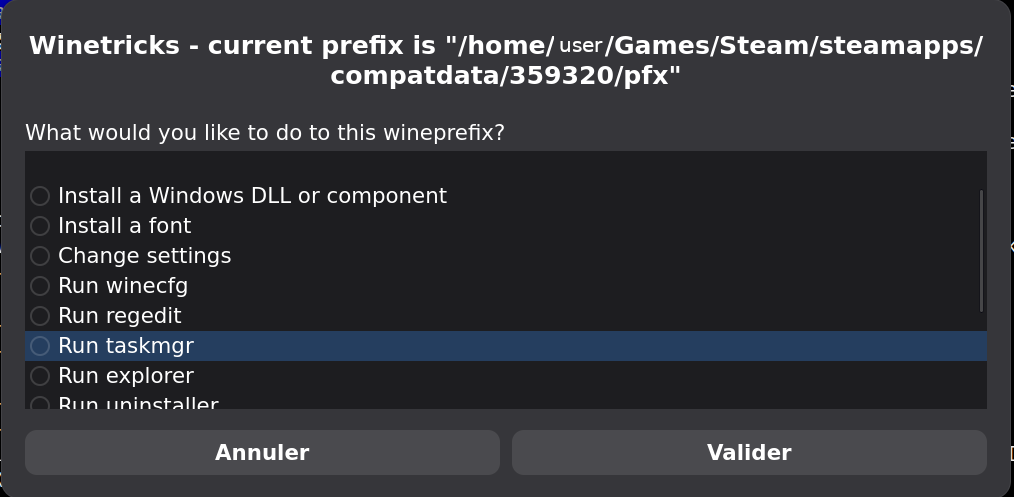
-
a new window “Winetricks - current prefix” opens and asks which package is to be installed; scroll until you find the choice “[ ] dotnetdesktop9 MS . NET Desktop Runtime 9.0 LTS”, then click the [ Validate ] button.
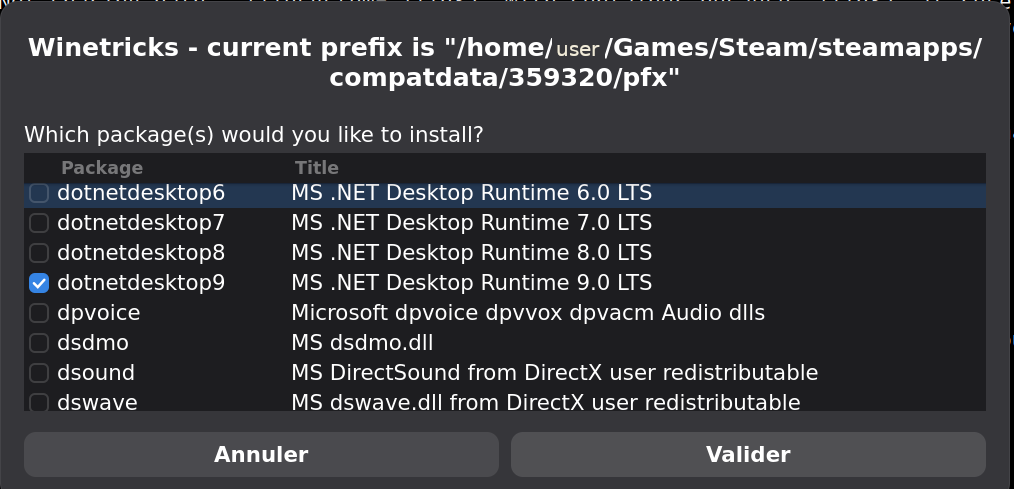
-
Once installed, click the [ Cancel ] buttons until the protontricks tool closes.
⇒ If SRV_Survey does not really launch, even Min Ed Launcher indicates that it’s, please read this section: Proton version!
With all these changes, SRV Survey should finally work!
Keep in mind that some features could crash the software. If so, close the game, and restart it so that Min ED Launcher will open both apps again.
Acknowledgements:
Squadron Manager
Squadron Manager is a tool to manage or participate one squadron. Yes, it’s possible to run this Windows app under Linux, by using protontricks and Steam.
You need to register first on website!
-
Repository: https://github.com/SquadronManager/App/
-
Logo: https://squadronmanager.comtac-fr.space/logos/logo2.png
-
Used version: 3.5.6
-
Steam:
- forced compatibility option: Proton 9.0-4
- launch option: none

After download the exceutable Setup, clic-right to launch with protontricks.
- Select the wineprefix for Elite Dangerous line, and finish normally the installation.
The install folder is:
steamapps/compatdata/359320/pfx/drive_c/users/steamuser/AppData/Local/Programs/Squadron Manager/
⇒ Once the installation is complete, before running the binary from Steam again, right-click again and choose the “Manage” > “Create a shortcut on desktop” menu.
The remarks made for the game’s Steam desktop shortcut are exactly the same for this shortcut; so make the same changes. Use the website logo for the launcher icon, available on URL belowe.
A EDMC plugin, named Michelle, is needed to communicate correctly between EDMC and Squadron Manager.
- Repository: https://github.com/taloche1/Michelle/
- Used version: 3.86
to install into the EDMC’s plugins folder.
Elite Intel
Elite Intel is an AI voice assistant for Elite Dangerous, using NVIDIA Parakeet, and working either local LLM or cloud.
-
version: 1.0
-
GPU specs min.: 12 Go VRAM
-
Repository: https://github.com/SudoKrondor/EliteIntel
Troubleshooting
Proton version
⇒ A note regarding SRV_Survey and the version of Proton:
SRV_Survey must run on the same version of Proton as ED!
- SRV_Survey.sh modified:
#!/usr/bin/env bash
PROTON_Version="Proton 9.0 (Beta)"
sleep 10s
export STEAM_COMPAT_DATA_PATH="$HOME/.steam/steam/steamapps/compatdata/359320"
export STEAM_COMPAT_CLIENT_INSTALL_PATH="$HOME/.steam/steam"
 "$HOME/.steam/steam/steamapps/common/${PROTON_Version}/proton" run $HOME/steam/steamapps/common/Elite Dangerous/SrvSurvey/SRV_survey/SrvSurvey.exe
The Min ED Launcher log informs from the beginning which arguments it calls, such as:
----------
2026-06-21 11:38:57.294 +02:00 [INF] Elite Dangerous: Minimal Launcher - v0.13.0+6e50d0e0
2026-06-21 11:38:57.385 +02:00 [DBG]
    Args: [|"/home/myusername/.steam/debian-installation/ubuntu12_32/steam-launch-wrapper"; "--";
  "/home/myusername/.steam/debian-installation/ubuntu12_32/reaper"; "SteamLaunch";
  "AppId=359320"; "--";
  "/home/myusername/.steam/debian-installation/steamapps/common/SteamLinuxRuntime_sniper/_v2-entry-point";
  "--verb=waitforexitandrun"; "--";
  "/home/myusername/Games/Steam/steamapps/common/Proton 9.0 (Beta)/proton";
  "waitforexitandrun";
  "/run/media/myusername/games/SteamLibrary/steamapps/common/Elite Dangerous/EDLaunch.exe";
  "/Steam"; "/novr"; "/autorun"; "/autoquit"; "waitForExit"|]
    OS: Linux64
    Env: STEAM_COMPAT_DATA_PATH=/run/media/myusername/games/SteamLibrary/steamapps/compatdata/359320

(…)
cf the sixth line… "/home/myusername/Games/Steam/steamapps/common/Proton 9.0 (Beta)/proton"; ;-)
Because ED is launch with this Proton version!
No such file or directory
⇒ A mention about using SRV_Survey with Min Ed Launcher:
- If you see on Min Ed Launcher logfile, similar statements:
2026-08-01 21:07:05.623 -05:00 [INF] Starting process $HOME/.steam/steam/steamapps/common/Elite Dangerous/SrvSurvey/SRV_Survey.sh 2026-08-01 21:07:05.629 -05:00 [FTL] Unable to start process $HOME/.steam/steam/steamapps/common/Elite Dangerous/SrvSurvey/SRV_Survey.sh HRESULT: 0x80004005 Win32 Error Code: 2
System.ComponentModel.Win32Exception (2): ErrorStartingProcess, $HOME/.steam/steam/steamapps/common/Elite Dangerous/SrvSurvey/SRV_Survey.sh, $HOME/.steam/steam/steamapps/common/Elite Dangerous/SrvSurvey, No such file or directory
Modify into the Min Ed Launcher’s JSON file yours writing; you use $HOME instead of writing litteraly your home user, like: /home/michael!
$HOME is only a shell variable; JSON can’t use it because he doesn’t know what to do with it!
EOF
Here you go!
“Fly safe, or fly trouble… it’s up to you! or not…” o7